SMOS




SMOS (Soil Moisture and Ocean Salinity) data readers and time series conversion tools.
Works great in combination with pytesmo.
Documentation & Software Citation
To see the latest full documentation click on the docs badge at the top. To cite this package follow the Zenodo badge at the top and export the citation there.
Installation
Before installing this package via pip, please install the necessary conda dependencies:
$ conda create -n smos python=3.12
$ conda env update -f environment.yml -n smos
Then
$ pip install smos
should work.
Example installation script
The following script will install miniconda and setup the environment on a UNIX
like system. Miniconda will be installed into $HOME/miniconda.
wget https://repo.continuum.io/miniconda/Miniconda-latest-Linux-x86_64.sh -O miniconda.sh
bash miniconda.sh -b -p $HOME/miniconda
export PATH="$HOME/miniconda/bin:$PATH"
git clone git@github.com:TUW-GEO/smos.git smos
cd smos
conda env create -f environment.yml
source activate smos
This script adds $HOME/miniconda/bin temporarily to the PATH to do this
permanently add export PATH="$HOME/miniconda/bin:$PATH" to your .bashrc
or .zshrc
The second to last line in the example activates the smos environment.
After that you should be able to run:
pytest
to run the test suite.
Supported Products
Currently the following products are supported, additional products can be added.
SMOS IC: SMOS INRA-CESBIO (SMOS-IC) 25 km
SMOS L4 RZSM: SMOS CATDS-CESBIO (SMOS L4 RZSM) 25 km
SMOS L2 Science Product: SMOS L2 Science Products (MIR_SMUDP2) 25 km
SMOS L3
Build Docker image
Check out the repo at the branch/tag/commit you want bake into the image
Make sure you have docker installed and run the command (replace the tag latest with something more meaningful, e.g. a version number)
docker build -t smos:latest . 2>&1 | tee docker_build.log
This will execute the commands from the Dockerfile. I.e. install a new environment from the environment.yml file and install the checked out version of the smos package.
To build and publish the image online, we have a GitHub Actions workflow in
.github/workflows/docker.yml
Contribute
We are happy if you want to contribute. Please raise an issue explaining what is missing or if you find a bug. We will also gladly accept pull requests against our master branch for new features or bug fixes.
Guidelines
If you want to contribute please follow these steps:
Fork the smos repository to your account
make a new feature branch from the smos master branch
Add your feature
please include tests for your contributions in one of the test directories We use py.test so a simple function called test_my_feature is enough
submit a pull request to our master branch
Reading images
L3_SMOS_IC
After downloading the data you will have a directory with subpaths of the format
YYYY. Let’s call this path root_path. To read ‘Soil_Moisture’
data for a certain date use the following code:
from smos.smos_ic.interface import SMOSDs
import matplotlib.pyplot as plt
from datetime import datetime
import os
# make sure to clone testdata submodule from https://github.com/TUW-GEO/smos
from smos import testdata_path


root_path = os.path.join(testdata_path, 'L3_SMOS_IC', 'ASC')
ds = SMOSDs(root_path, parameters='Soil_Moisture')
image = ds.read(datetime(2018, 1, 1))
assert list(image.data.keys()) == ['Soil_Moisture']
sm_data = image.data['Soil_Moisture']

plt.imshow(sm_data)
plt.show()
The returned image is of the type pygeobase.Image. Which is only a small wrapper around a dictionary of numpy arrays.
If you only have a single image you can also read the data directly by specifying the file. Here we ignore any “Quality_Flag” values and simply read all data from file.
from smos.smos_ic.interface import SMOSImg
import matplotlib.pyplot as plt
from datetime import datetime
import os
# make sure to clone testdata submodule from https://github.com/TUW-GEO/smos
from smos import testdata_path

fname = os.path.join(testdata_path, 'L3_SMOS_IC', 'ASC', '2018',
                     'SM_RE06_MIR_CDF3SA_20180101T000000_20180101T235959_105_001_8.DBL.nc')
img = SMOSImg(fname, read_flags=None)

image = img.read(datetime(2018,1,1))
sm_data = image.data['Soil_Moisture']

plt.imshow(sm_data)
plt.show()
You can also limit the reading to certain variables or a spatial subset by defining a bounding box area. In the following example, we read SMOS IC Soil Moisture over Europe only, and mask the data based on the “Quality_Flag” variable, to only include 0-flagged (i.e. “good”) values.
from smos.smos_ic.interface import SMOSImg
from smos.grid import EASE25CellGrid
import matplotlib.pyplot as plt
from datetime import datetime
import os
# make sure to clone testdata submodule from https://github.com/TUW-GEO/smos
from smos import testdata_path

fname = os.path.join(testdata_path, 'L3_SMOS_IC', 'ASC', '2018',
                     'SM_RE06_MIR_CDF3SA_20180101T000000_20180101T235959_105_001_8.DBL.nc')

# bbox_order : (min_lon, min_lat, max_lon, max_lat)
subgrid_eu = EASE25CellGrid(bbox=(-11., 34., 43., 71.))

img = SMOSImg(fname, parameters=['Soil_Moisture', 'Quality_Flag', 'Days', 'UTC_Seconds'],
              read_flags=(0,), grid=subgrid_eu)

imgdata = img.read(datetime(2018,1,1))

plt.imshow(imgdata.data['Soil_Moisture'])
plt.show()
Write (subset) images
To write down an image to a new file (e.g. after filtering certain parameters or
to create spatial subset files) you can use the functions SMOSImg.write. This
will create a new netcdf file with the content of the current image at a selected location.
from smos.smos_ic.interface import SMOSImg
from smos.grid import EASE25CellGrid
import matplotlib.pyplot as plt
from datetime import datetime
import os
# make sure to clone testdata submodule from https://github.com/TUW-GEO/smos
from smos import testdata_path

fname = os.path.join(testdata_path, 'L3_SMOS_IC', 'ASC', '2018',
                     'SM_RE06_MIR_CDF3SA_20180101T000000_20180101T235959_105_001_8.DBL.nc')

# bbox_order : (min_lon, min_lat, max_lon, max_lat)
subgrid_eu = EASE25CellGrid(bbox=(-11., 34., 43., 71.))

img = SMOSImg(fname, parameters=['Soil_Moisture', 'Quality_Flag', 'Days', 'UTC_Seconds'],
              read_flags=(0,), grid=subgrid_eu)

img.read(datetime(2018,1,1))

img.write(r"C:\Temp\write\subset_image.nc")
Finally, you can also write down multiple files using the write function from
SMOSDs. You can either create single files per time stamp (like the original data is)
or netcdf stacks. This example will do both (note that days when no data is loaded are
also skipped when writing the subset).
from smos.smos_ic.interface import SMOSDs
from smos.grid import EASE25CellGrid
import matplotlib.pyplot as plt
from datetime import datetime
import os
# make sure to clone testdata submodule from https://github.com/TUW-GEO/smos
from smos import testdata_path

path = os.path.join(testdata_path, 'L3_SMOS_IC', 'ASC')

# bbox_order : (min_lon, min_lat, max_lon, max_lat)
subgrid_eu = EASE25CellGrid(bbox=(-11., 34., 43., 71.))

ds = SMOSDs(path, parameters=['Soil_Moisture', 'Quality_Flag', 'Days', 'UTC_Seconds'],
             read_flags=(0,), grid=subgrid_eu)

# write data as single files
ds.write_multiple(r'C:\Temp\write\test', start_date=datetime(2018,1,1), end_date=datetime(2018,1,3),
                  stackfile=None)

# write data as a stack
ds.write_multiple(r'C:\Temp\write\test', stackfile='stack.nc', start_date=datetime(2018,1,1),
                  end_date=datetime(2018,1,3))
Variable naming for different versions of SMOS
This is a full list of all available variables in each image. These parameters can be passed to the repurpose routine to create time series.
L3 SMOS IC
Parameter |
Long Name |
Units |
|---|---|---|
Days |
Number of Days since 1/1/2000 |
|
Processing_Flags |
Processing Flags |
|
Quality_Flag |
0: data OK, 1: data not recommended, 2: missing data |
|
RMSE |
RMSE TBmeas. TB modeled |
|
Scene_Flags |
Scene Flags |
|
Soil_Moisture |
Soil Moisture |
m 3 m -3 |
Soil_Moisture_StdError |
Soil Moisture standard error |
m 3 m -3 |
Soil_Temperature_Level1 |
ECMWF Soil Temperature at surface level 1 |
Kelvin |
UTC_Microseconds |
Microseconds |
micros. |
UTC_Seconds |
Number of Seconds |
s |
L4 SMOS RZSM SM_SCIE_MIR_CLF4RD
Parameter |
Long Name |
Units |
|---|---|---|
QUAL |
Quality index 1.0 highest quality |
|
RZSM |
Root Zone Soil Moisture |
m3/m3 |
L4 SMOS RZSM SM_OPER_MIR_CLF4RD
Parameter |
Long Name |
Units |
|---|---|---|
Quality |
-1: missing data, 0: data not recommended, 1: data OK |
|
RZSM |
Retrieved Root Zone Soil Moisture |
m3/m3 |
Conversion to time series format
For a lot of applications it is favorable to convert the image based format into a format which is optimized for fast time series retrieval. This is what we often need for e.g. validation studies. This can be done by stacking the images into a netCDF file and choosing the correct chunk sizes or a lot of other methods. We have chosen to do it in the following way:
Store the time series in netCDF4 in the Climate and Forecast convention Orthogonal multidimensional array representation
Store the time series in 5x5 degree cells. This means there will be 2448 cell files for global data and a file called
grid.nc, which contains the information about which grid point is stored in which file. This allows us to read a whole 5x5 degree area into memory and iterate over the time series quickly.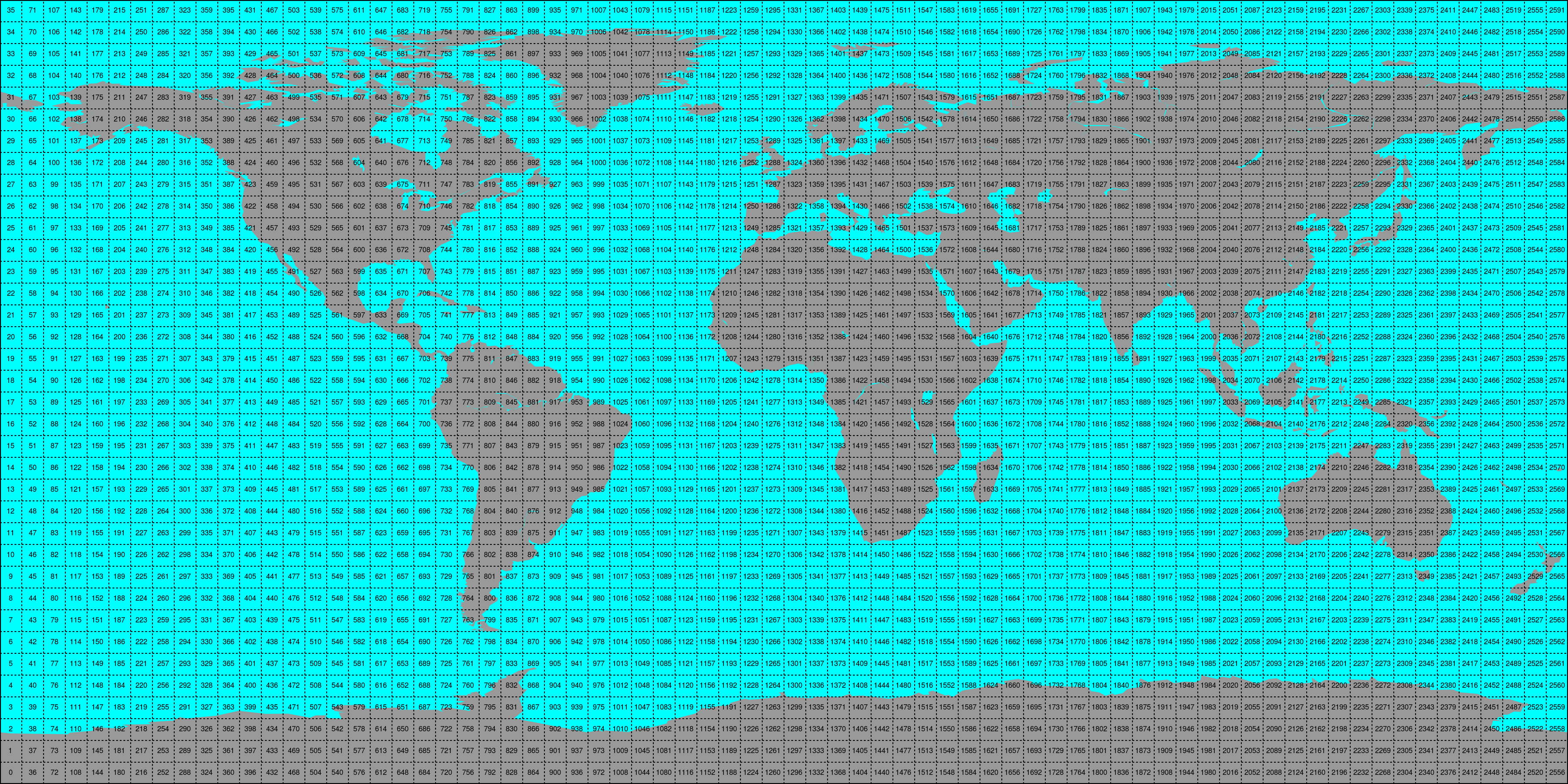
This conversion can be performed using the smos_repurpose command line
program. An example would be:
smos_repurpose /smos_ic_img_data /timeseries/data 2011-01-01 2011-01-02 --parameters Soil_Moisture --bbox -11 34 43 71
Which would take Soil_Moisture values from SMOS IC images stored in /image_data from January 1st
2011 to January 2nd 2011 and store the values as time series in the folder /timeseries/data.
Keywords that can be used in smos_repurpose:
-h (–help) : Shows the help text for the reshuffle function
–parameters : Parameters to reshuffle into time series format. e.g. Soil_Moisture. If this is not specified, all parameters in the first detected image file will be reshuffled. Default: None.
–only_good : Read only 0-flagged (GOOD) observations (by Quality_Flag), if this is set to False, also 1-flagged (not recommended) ones will be read and reshuffled, 2-flagged (missing) values are always excluded. Excluded values are replaced by NaNs. Default: False.
–bbox : min_lon min_lat max_lon max_lat. Bounding Box (lower left and upper right corner) of subset area of global images to reshuffle (WGS84). Default: None.
–imgbuffer : The number of images that are read into memory before converting them into time series. Bigger numbers make the conversion faster but consume more memory. Default: 100.
Conversion to time series is performed by the repurpose package in the background. For custom settings or other options see the repurpose documentation .